A flyer with a QR code gives interested readers a next step: book an appointment, buy a ticket, view your menu or register for an event. To create one with BrandGene, describe your promotion, provide the destination link and ask the Image Agent to include a real QR code. You can then refine the headline, layout or QR position through conversation.
Start with what you want someone to do after seeing the flyer. The artwork, offer and QR label should all support that action.
Create my QR code flyerChoose the flyer that fits your goal
| Your goal | What the flyer should communicate | Where the code should lead |
|---|---|---|
| Get appointment enquiries | Service, offer, business name and contact details | Booking or enquiry page |
| Promote a local business | A specific reason to visit or order | Menu, offer page or store information |
| Sell event tickets | Event, date, venue and ticket action | Ticket checkout |
| Collect registrations | Who the event is for and what attendees need to know | Registration form |
| Update an existing promotion | Keep the current design and add a clear next step | The destination you supply |
Use the business flyer guide for appointments and local promotions, or the event flyer guide for tickets and registrations.
Give the AI the details a customer needs
You do not need to describe how a QR code is built. Provide the information you would give a designer:
- Business or event name.
- The promotion and its audience.
- Exact dates, prices, address and contact details that must appear.
- Your brand colors and any real photos or logo you want to use.
- The complete booking, ticket, menu or signup link.
Use the actual destination rather than asking the AI to guess it. Open that page on your phone first and make sure a new visitor can complete the action.
Create a square flyer for [business name] promoting [offer].
Audience: [who the offer is for].
Headline: [headline]. Details: [price, dates, address and contact].
Use [brand colors] and [my uploaded photo or preferred visual style].
Add a real QR code for [my complete destination URL].
Label it [Scan to book / View the menu / Get tickets].
Keep the offer prominent and the QR code away from important text.
Ask for missing details before creating the flyer.
If you already have artwork, use how to add a QR code to an existing flyer instead of starting over.
Review the first design, then ask for specific changes
Check the details your customers will rely on: spelling, price, date, address and destination. Then ask for a focused change, such as “Make the offer easier to read,” “Use my uploaded photo,” or “Move the booking QR to the lower right.”
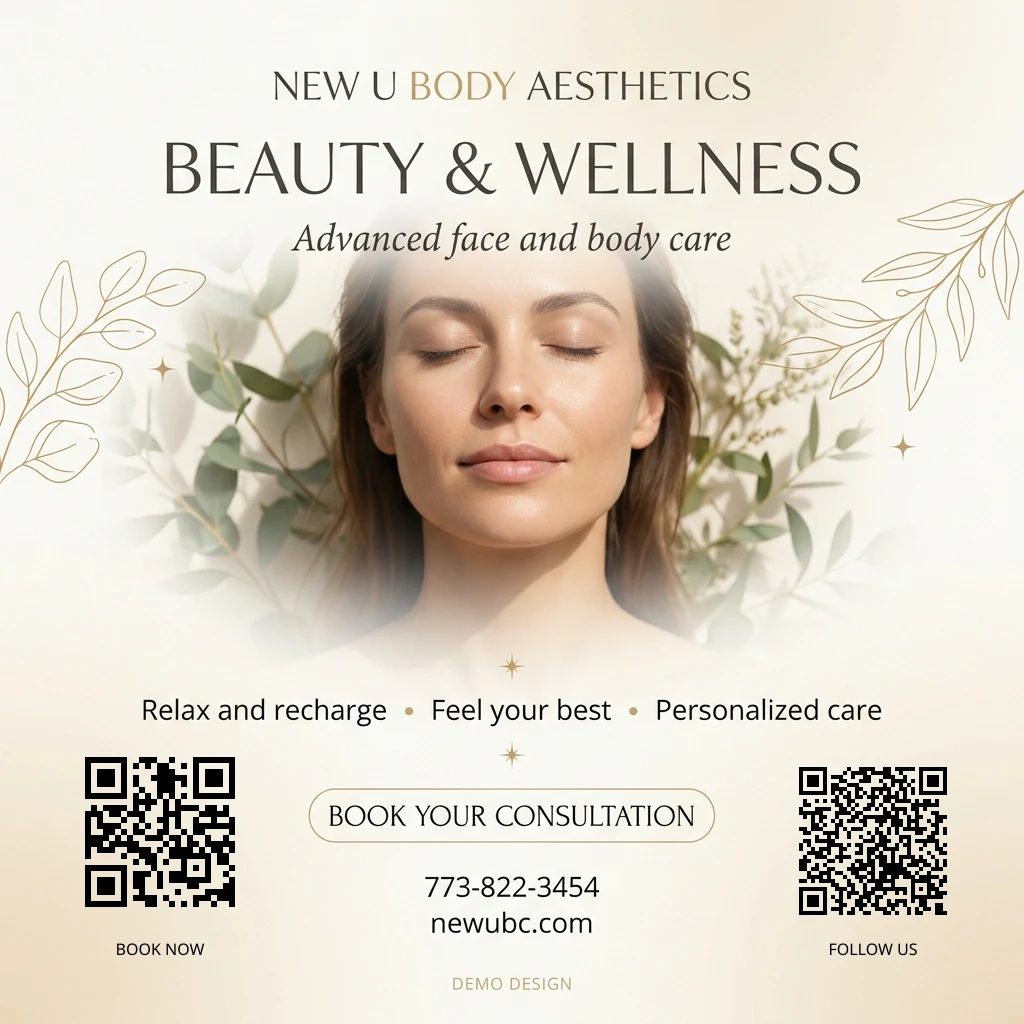
The code can sit directly on a suitable light area of the design, so a separate white card is not always necessary. More important than the treatment is that it remains easy to scan and does not compete with the offer.
The QR link is encoded separately from the AI artwork. Ask for a real QR code using your supplied URL; a decorative QR-like pattern in an image is not evidence of a working link.
Change the QR position without recreating the flyer
In the same conversation, you can say:
Move the QR code to the top-right corner. Keep the rest of the flyer unchanged.
BrandGene can use the clean design to create a revised version with the same destination at the new position. If the flyer has two codes, name the one you want to move. Ask to keep its size if that matters; a crowded corner may need another placement.
The existing flyer guide includes an actual before-and-after example of this follow-up. You do not need a new image generation just to reposition a code when the clean source is available.
Check the flyer where customers will see it
Scan the final downloaded file, confirm the page it opens and check the version you will share. A small social preview can be harder to scan than the original. For a print run, test a physical proof before ordering copies.
Leave a clear margin around the code. DENSO WAVE specifies a four-module quiet zone for standard QR codes; keep text and decoration outside that area. Read the code-area guidance.
A nearby action such as “Scan to book” tells readers why the code is there. Also include a readable contact method or URL. When sharing the flyer on social media, place a clickable link in the accompanying post where the platform allows it.
What costs credits?
Creating or regenerating the artwork uses normal image-generation credits. BrandGene's real QR generation and placement tools use zero credits. A request to redesign the flyer is different from adding or moving its code.
For broader layout ideas, read the flyer and poster creative guide.
Frequently Asked Questions
Can I create a flyer with a booking QR code? Yes. Provide your booking URL, business details and offer. Request a real QR code and a short label such as “Scan to book.” Check the destination before distributing the flyer.
Can I use my own logo or photos? You can upload reference images. Review the generated design to make sure important brand and product details are represented correctly.
Can I move the code after generating the flyer? Yes, in the same conversation when its clean source is available. Describe the new location and identify which code you mean if there is more than one.
Can I add a QR code to a flyer I already have? Yes. Upload the clean flyer and supply the destination link. You can request placement without recreating the artwork.
Does adding the code guarantee it will work in print? No. Check the downloaded digital file and a printed proof at the size and distance your audience will use.
Browse the QR flyer guides or open the AI Flyer Maker to start with your promotion.